Go to monday.com apps marketplace, search for “Quickley”, and click “Install”. You will be prompted to create a free Quickley account by entering your email and password. A Quickley account is necessary for this integration to work. You will also need to connect social media and messengers accounts you would like to receive messages from after you create an account with Quickley.
Pricing
Quickley is free forever on its basic plan. However, a premium plan “Inbox Plus” is available for $19/mo.
Free plan supports most of the social media and messengers. However, if you’d like to receive comments from social media or messages from WhatsApp Business with your monday.com integration, you would need to opt for the paid plan.
Quickley supports various social media and messenger accounts and allows businesses to receive all messages and customer communication within monday.com app. In order to receive messages, you need to connect accounts.
Currently, Quickley supports Live Chat, WhatsApp Business, Instagram, Facebook, Telegram, VK, Viber, with more supported sources underway.
To connect new accounts, log into your Quickley profile, then hit your profile picture in the top right corner, click on “Project”, and choose “Connect channel”. You will then be prompted to choose what channels you’d like to connect. Click on the desired channel and follow the instructions on screen to connect it to your Quickley profile.
Most channels are fairly easy to connect—the process usually takes a few minutes. However, connecting WhatsApp Business API can take a bit of time, so we will discuss it in greater detail.
Set up WhatsApp Business API
WhatsApp Business API (or WABA) is your ultimate way to engage with WhatsApp leads and customers. WABA allows to connect you WhatsApp account to Quickley and easily integrate it with other support apps—like monday.com.
With WABA installed, you will be able to automatically populate all your leads and messages from WhatsApp to monday.com, and communicate with them right from the convenience of monday.com Item View.
On top of that, you will be able to create automations and recipes that allow to send automated messages or status updates to your WhatsApp chats, move leads along your pipeline, and change customer’s status on monday.com board.
WhatsApp Business API is an extremely useful tool to engage with your customers where they spend most of their time—on WhatsApp.
1. Subscribe and Pay
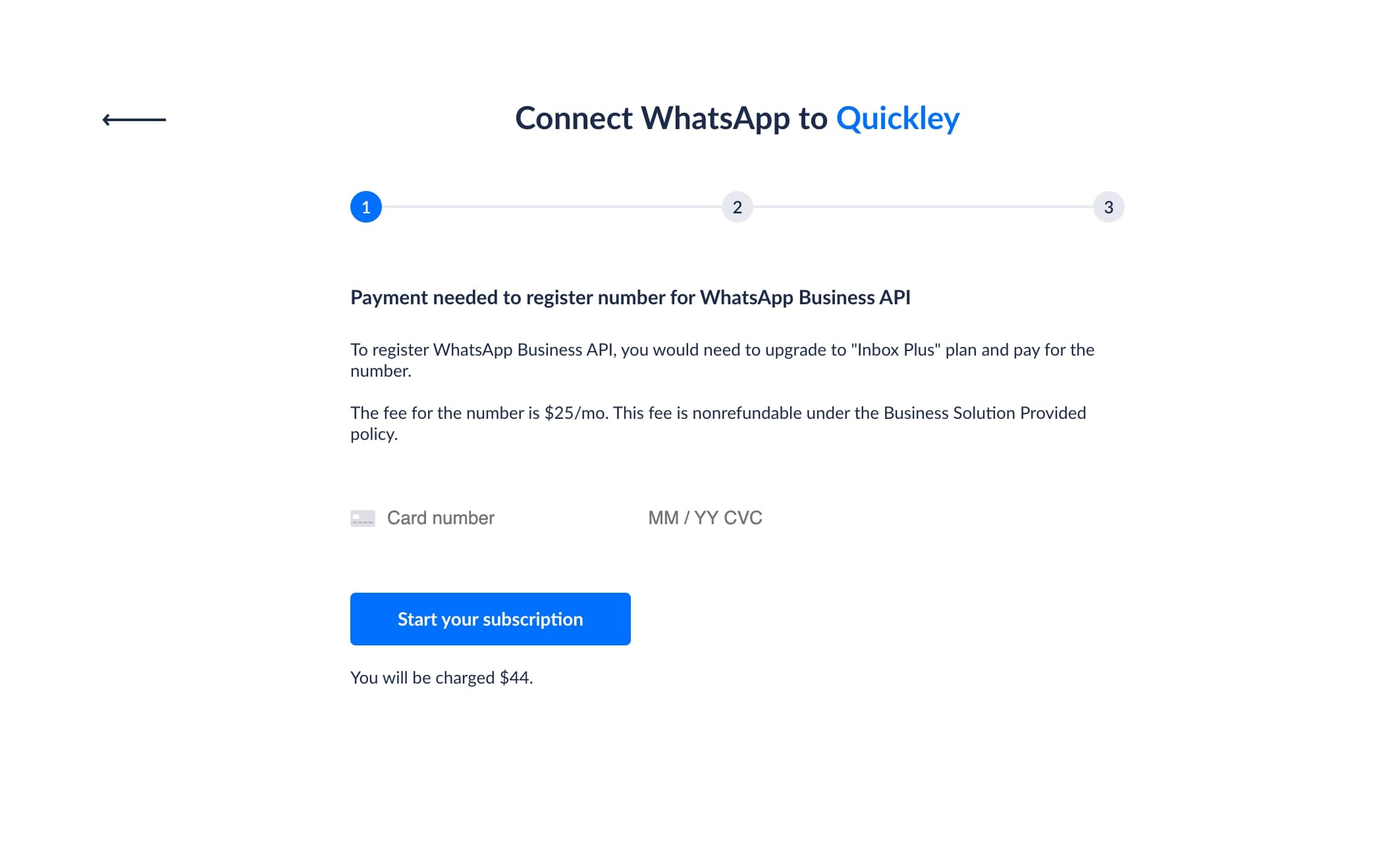
WhatsApp Business API requires creating a highly complex technical stack with Facebook and therefore requires a deposit to be paid by the customer before processing. You will be charged $25 at the time you submit a WABA order with us. After that, WABA is billed at $25 per month. You will also be charged $19 per month for the Quickley “Inbox Plus” subscription plan, with total bill being $44 per month.
2. Register your Number with WhatsApp Business
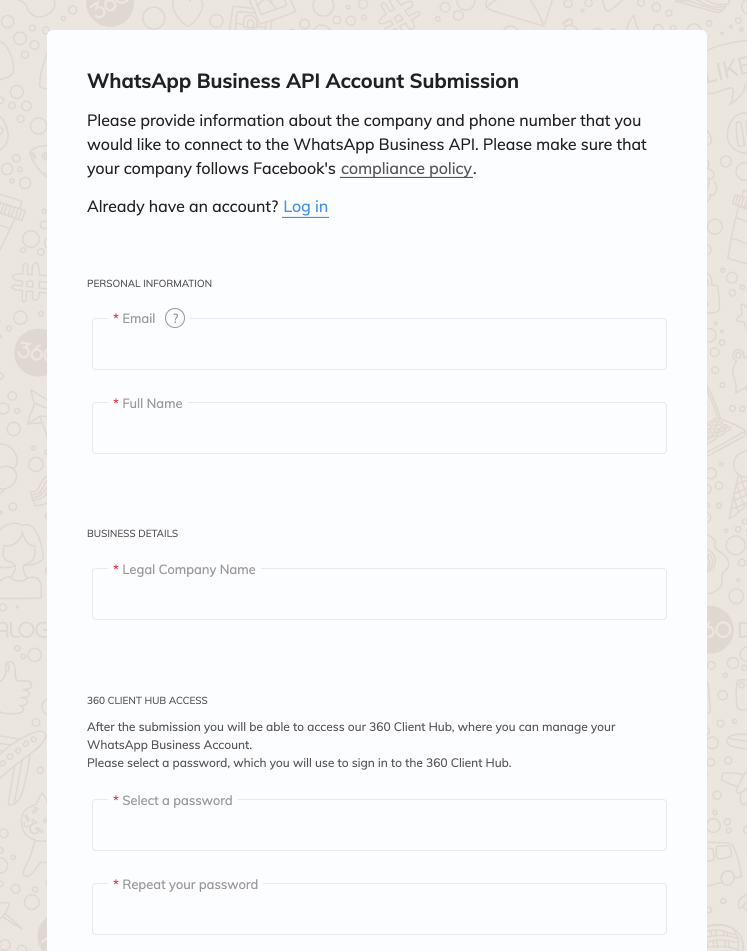
In order to activate WhatsApp Business API with your phone number, you need to submit a special application with our third-party service provider—360dialog. Once the application is approved, you will gain access to the 360dialog client’s hub, which is a simple and convenient place to manage your WhatsApp Business API connection. 360dialog is a third-party provider that we’ve officially partnered with in order to provide WhatsApp Business API services through Quickley.
Your business needs to be verified by Facebook. If your business is not yet verified, you will have two weeks after you submit your application to do so via Facebook Business Manager. To begin application, you must have a phone number that is NOT associated with any WhatsApp account, personal or business.
Here’s a video showing the application process in great detail:
If you prefer written instructions, below is the description of all the steps:
Fill out the application for WhatsApp Business API with our third-party service provider 360dialog. During the application process, you will be required to provide your personal email, first and last name, as well as the name of your legal entity.
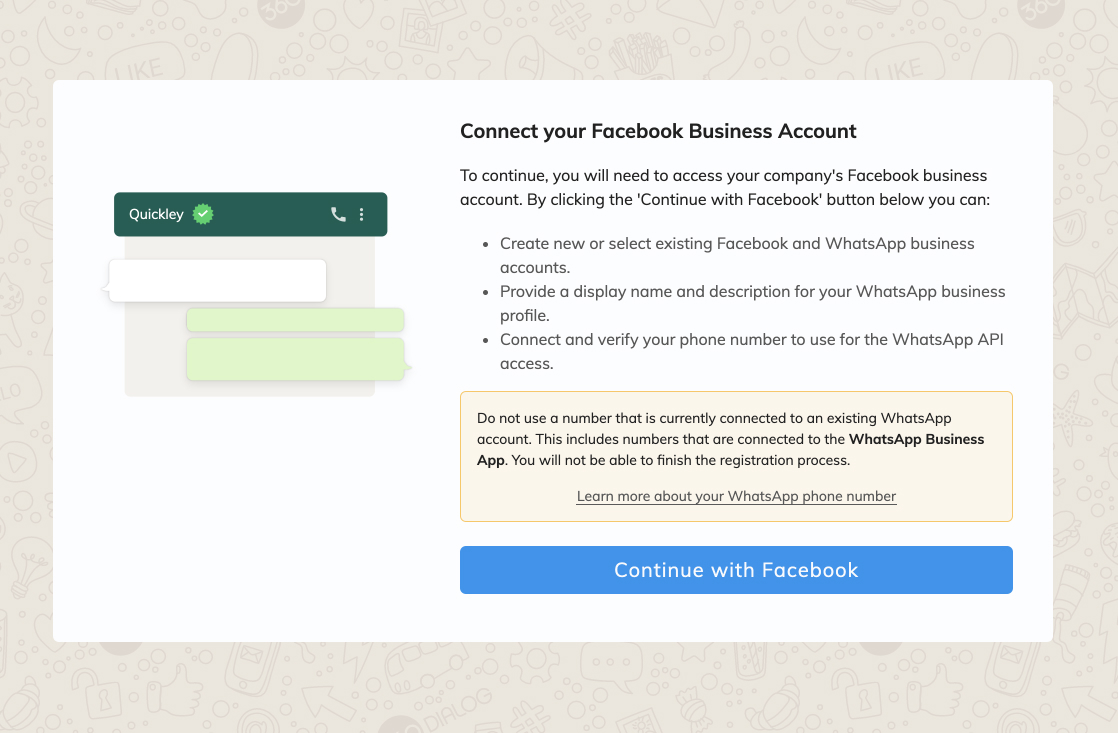
Then you will need to connect your 360dialog profile to your company’s Facebook Business Manager. To do so, just
click “Continue with Facebook” button on the screen, then click “Get Started” and “Continue”. You will be asked
to choose a Facebook Business Account associated with this company. Go ahead and choose one.
Then, you will be asked to choose a Facebook Business profile associated with your company—do so and click “Continue”. Then, you will be asked to enter your WhatsApp Business Account Name, and choose a Timezone. Do so and click “Continue”.
On step 2 of 3, you will be asked to choose a Category of your business. Please do so and enter your Business description below. Once done, click “Continue to Step 3”.
Step 3 is the verification of your WABA phone number. Please enter a phone number that is NOT associated with
any other WhatsApp account—both personal and business—and hit “Send Code”. You will then be required to receive
and enter an SMS code. Once completed, your account with 360dialog is ready and live. You can now visit your
client hub at: https://hub.360dialog.com/. Should you have any questions regarding the application process,
please contact us or read the documentation provided by 360dialog at: https://docs.360dialog.com/embedded-signup
Once you’ve activated your account with 360dialog, you should go ahead and access your 360dialog client’s hub and generate an API key for your WABA. You will then need to head over back to Quickley and insert the API key as well as the phone number used for WhatsApp Business API to complete the integration.
Please keep in mind that in order for this integration to work properly, your business must be verified by Facebook. If your business is already verified, you can skip this step. If you haven’t verified your business with Facebook yet, learn more about this process here and follow these steps:
Go to your Business Settings and click “Security Center”
Choose “Start Verification”
Enter your business details and proceed
Choose your business legal name from the list provided
Receive and enter your verification code sent by Facebook
Congratulations—your verification request is submitted. You can come back to this page a few days later to check the status of verification
Once you’ve created an account with 360dialog, activated it, generated the API key, inserted in into Quickley’s settings, and verified your business with Facebook—your WhatsApp Business API integration is fully LIVE and can work seamlessly with monday.com. Enjoy!
Recipes
Our integration supports recipes, which is monday.com’s feature for automations. In total, Quickley supports 7 recipes—4 general recipes and 3 dedicated for WhatsApp Business API exclusively.
To add a recipe, go to your monday.com board and click on “Integrate”, then search for “Quickley” and install the integration. Upon installation, you will be prompted to choose a recipe you’d like to use. Below is the description of what each recipe does and how you can use them.
General Recipes
When new dialog is started in channel, create a new item.
What it does: whenever you receive a new message or comment from any connected channel in Quickley, a new Item will be created on your monday.com board. This recipe is great to populate all new leads from all sources to your CRM board.
When new message is received in channel, set status to something.
What it does: whenever you receive a new message from a specific channel in Quickley, the status of the Item will be changed on your monday.com board. For instance, you can automatically change the status to “Needs reply” in order to focus your team members’ attention on this specific customer.
When message in channel contains text, create an item with mapping.
What it does: whenever a new message from a specific channel contains some specific text or words, a new Item will be created with customization.
When message in channel contains text, set status to something.
What it does: whenever a new message from a specific channel contains a specific text or words, the status of the Item will be changed to something. For instance, you can use that automation to change status of the customer to “Refund” or “Return” once the system detects the usage of such words in the communication.
When a dialog is finalized in channel, set status to something
What it does: whenever you or your team member finalize a dialog in Quickley, the status of this item will be changed as well. For instance, you may set it so that the status changes to “no actioned needed” or “finalized”. This way your board’s user will know that this customer does not require attention.
Special Recipes for WhatsApp
There are a few recipes that are unique to WhatsApp Business API. Each of the recipes allow you to create and send a template message from WhatsApp upon some action on monday.com—for instance, a click on the button or a change of item’s status.
Below is the description of recipes and how they work:
When a button is clicked, send a template message from WhatsApp with mapping.
This recipe can be used to send automated messages to customers once a manager or a team member clicks a button within monday.com board.
When an item is moved to a group, send a template message from WhatsApp with mapping.
This recipe can be used to send an automated message to a customer once a manager, a team member, or an automation moves the item to a specific group on a monday.com board.
When status is changed to something, send a template message from WhatsApp with mapping.
This recipe can be used to send automated messages to customers once a manager, a team member, or an automation changes the status of the item on a monday.com board.
WhatsApp Template Messages
A core feature of WhatsApp Business API is called “Template Messages”. Template Messages are important to automate the workflow of your enterprise communication, as they can be sent out via WhatsApp automatically. Each and every of your Template Messages must be verified by Facebook before they can be broadcasted to customers. This is intended to filter our spam and other unwanted messages within the Facebook-WhatsApp network.
Your business can create as many Template Messages as necessary. In fact, many companies choose to create a lot of Template Messages in order to automate every possible customer communication.
You can create your Template Messages and send them for approval to Facebook in your 360dialog Client’s Hub via the link:
https://hub.360dialog.com/
The verification process for each Template Message is pretty quick and should take under 24 hours. You will receive an email confirmation once your Messages are approved by Facebook.
Please kindly keep in mind that some types of messages will not be approved by Facebook, including promo messages, marketing messages, messages containing spam, abusive content, or any content that otherwise violates any rules and conditions of Facebook.
Should you have any questions regarding the Template Messages, please contact us directly or learn more via the link:
Chat via monday.com ItemView
Once the integration is active, you can start to communicate with your prospects and customers from the convenience of monday.com app. Set up your first recipe (see paragraph above) to create your first monday.com Item out of a conversation. Once you get your first Item through recipe, click on “Add to Conversation” button on the Item, hit “+Add View”, and search for “Quickley”. Install the view. You will be asked to log into your existing Quickley account using login and password. Once done, you will be able to chat with your customers without leaving monday.com Item View.
Limitations
This integration has certain limitations that you, as a customer, should be aware of. The limitations are as follows:
24-hour messaging window
WhatsApp Business API has what is called 24-hour window limitation. This limitations basically means that you as a company has just 24 hours to reply to a customer’s messages after it was sent to you via WhatsApp. Once a customer sends you a WhatsApp messages, the 24-hour session is started. If you do not respond on time, you cannot continue a normal conversation with the customer as your dialog becomes locked. To send a new message to such customer, you can only use a Template message that was submitted to and pre-approved by Facebook. Keep in mind that such template message cannot be of a marketing or sales nature.
Downgrade restriction
It is is important to always keep in mind that once a phone number is signed up for WhatsApp Business API, it can no longer be used for WhatsApp personal or WhatsApp business app.
In a way, a phone number can be upgraded to WhatsApp Business API, but cannot be downgraded. Should you ever need to downgrade your WhatsApp Business API number back to regular WhatsApp number, you would have to contact Facebook support directly. Please keep in mind that the success in this case is not guaranteed.
Group chat
As of now, WhatsApp group chat is not supported within the WhatsApp business API. The feature might become available in the future.
Calling through WhatsApp
As of now, WhatsApp doesn't support calling through their WhatsApp Business API. The feature might become available in the future.
Application process
Please kindly keep in mind that the overall application process for WhatsApp Business API can take somewhere between 2 hours and 14 days to complete and might require your constant attention and collaboration.